Gaming projectors for PS5, Xbox & PC

Shop by Interest · Gaming

Gaming projectors for PS5, Xbox & PC

Big-screen gaming at home. 4K RGB triple-laser projectors with low input lag and high refresh rates — ready for PS5, Xbox and PC.

Refresh rate
240Hz
Response time
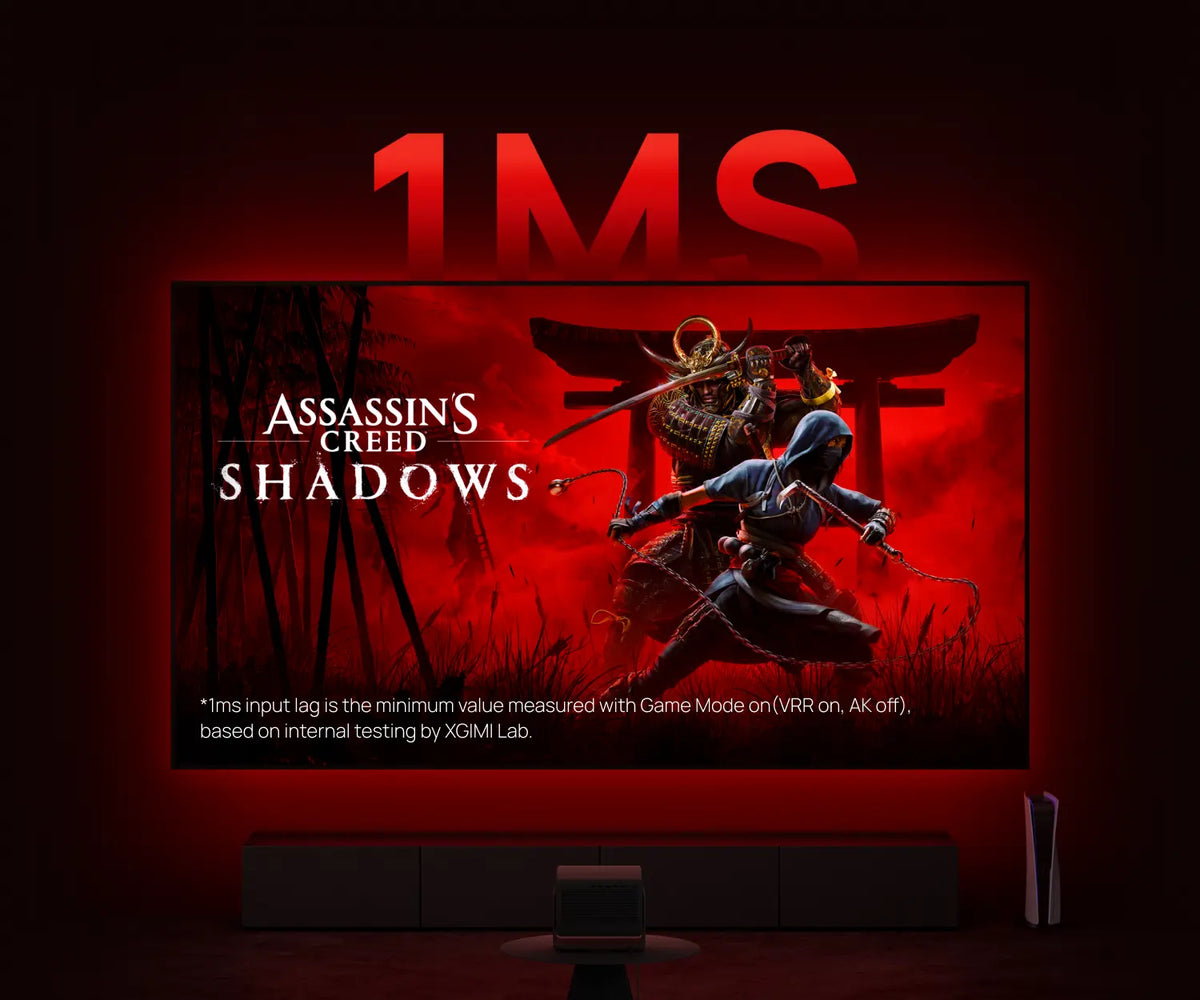
1ms
Max screen size
300"
Peak ISO lumens
5700

Quick answer

What is the best projector for gaming in the UAE?

For PS5, Xbox and PC, the XGIMI Horizon 20 Series. All three models combine a 4K RGB triple-laser picture with 240Hz at 1080p and input lag as low as 1ms (3ms at 4K/60Hz), on screens from 40" to 300". Horizon 20 is rated at 3200 ISO lumens, Horizon 20 Pro at 4100 and Horizon 20 Max at 5700. On PS5, choose 4K/60Hz for open-world games like GTA VI and 1080p/120Hz for fast shooters.

The line-up

Choose your gaming projector

Every Horizon 20 model pairs an X-Master RGB triple-laser engine with 240Hz motion and 1ms response.

Horizon 20

The entry point to XGIMI's RGB triple-laser range — big-screen gaming without the flagship price.

AED 5,499.00 AED 7,799.00 Save AED 2,300.00
Resolution
4K (3840×2160)
Brightness
3200 ISO Lm
Light source
RGB triple laser
Screen size
40"–300"
Input lag
1ms @240Hz · 3ms @4K
Sound
2 × 12W Harman Kardon
Shop now
GTA VI on PS5, at cinema scale

Now playing: Grand Theft Auto VI

GTA VI on PS5, at cinema scale

Grand Theft Auto VI launched on PlayStation 5 on 19 November 2026. Its open world was made for a screen bigger than any TV — plug your PS5 into a Horizon 20 and see Vice City the way it deserves.

  • Plug in your PS5

    Connect over HDMI and play. With ALLM, Horizon 20 and 20 Pro switch to low-latency game mode automatically when your console starts a game.

  • Vice City at 300"

    Every Horizon 20 model projects from 40" up to 300" — explore Leonida at a scale no TV can match.

  • 4K HDR detail

    RGB triple laser and 20,000:1 contrast bring out neon nights, sunsets and every street detail.

  • 1ms response

    Car chases and shootouts feel instant, with inputs landing on screen the moment you press.

Grand Theft Auto VI is a trademark of Take-Two Interactive Software. PlayStation and PS5 are trademarks of Sony Interactive Entertainment. XGIMI is not affiliated with or endorsed by these companies. Game sold separately.

Input lag

4K detail or 120Hz speed — your choice

Horizon 20 input lag, measured by XGIMI in Game Mode with VRR on and auto keystone off.

3ms 4K at 60HzBest for open worlds and story games like GTA VI — maximum detail.
2.2ms 1080p at 120HzBest for fast shooters and racing on PS5.
1ms 1080p at 240HzFor PC gaming. PS5 outputs up to 120Hz.
Why game on a Horizon 20

Built for play

Why game on a Horizon 20

Console or PC, the Horizon 20 Series turns your wall into a gaming arena.

  • 240Hz motion

    Fast-moving shooters and racers stay smooth and sharp.

  • 1ms response

    Your inputs land on screen the instant you press them.

  • Up to 300" screens

    All Horizon 20 models project 40"–300" (60"–150" recommended), with lens shift and optical zoom.

  • RGB triple laser

    Rich, accurate colour with up to 5700 ISO lumens of brightness.

  • VRR & ALLM

    Variable refresh and auto low-latency mode on Horizon 20 and 20 Pro.

  • Google TV built in

    Streaming apps and Google Home voice control, no extra box needed.

PS5 setup

Ready to play in 6 steps

Set up your Horizon 20 for the best PS5 picture and the lowest input lag.

  1. 01

    Connect your PS5

    Plug the PS5 into HDMI 2. Connect a soundbar or AV receiver to HDMI 1 (eARC).

  2. 02

    Switch HDMI to 2.1

    In Settings → Channels & Inputs, set the PS5 input EDID to 2.1 and turn on eARC.

  3. 03

    Turn on Game Mode

    Select Low-Latency Game Mode (or let ALLM switch it on). Turn auto keystone off and line up the image with lens shift and zoom.

  4. 04

    Enable 120Hz

    For 120Hz games, turn on Projector Super Frame in Picture → Advanced Settings. Turn it off for 4K.

  5. 05

    Set up the PS5

    On PS5, go to Settings → Screen and Video → Video Output and set VRR and 120Hz output to Automatic.

  6. 06

    Size your screen

    For a 100" image, place Horizon 20 about 2.7–3.3 m from the wall. Tape the corners and check from your seat.

Steps shown for Horizon 20. Menu names may differ slightly on Horizon 20 Pro and 20 Max. Daytime gaming? Blackout curtains or an ALR screen make the biggest difference.

Read the full gaming guide

Gaming FAQ

Questions before you play?

Still deciding? Our team can help you pick the right projector for your room and setup.

Talk to our team
Which Horizon 20 model is best for gaming?

All three share 4K RGB triple-laser picture, 240Hz at 1080p and input lag as low as 1ms. Horizon 20 (3200 ISO lumens) suits most rooms, Horizon 20 Pro (4100) is brighter for competitive gaming, and Horizon 20 Max (5700) is the choice for bright rooms or very large screens.

Is a Horizon 20 good for PS5 and GTA VI?

Yes. Connect your PS5 over HDMI for a big-screen 4K HDR picture with low input lag — on Horizon 20 that is 3ms at 4K/60Hz and 2.2ms at 1080p/120Hz. Horizon 20 and 20 Pro also support ALLM and VRR. GTA VI targets 30fps on PS5, so 4K/60Hz is the mode to choose for maximum detail.

Can the PS5 use 240Hz?

No. The PS5 outputs up to 120Hz. On Horizon 20, use 4K at 60Hz for open-world games and 1080p at 120Hz for fast shooters. The 1080p 240Hz mode is for PC gaming.

Do these projectors support 240Hz and low input lag?

Yes. Horizon 20, Horizon 20 Pro and Horizon 20 Max all list 240Hz motion and 1ms response for gaming. Horizon 20 and 20 Pro also support VRR and ALLM.

Can I game in a bright room?

For rooms with daylight, choose Horizon 20 Max — its 5700 ISO lumens are designed for daylight viewing. Horizon 20 Pro, at 4100 ISO lumens, is also a strong choice for brighter rooms.

How big can the picture be?

All three Horizon 20 models project from 40" to 300", with 60"–150" recommended for the best picture. Lens shift (V ±120%, H ±45%) and optical zoom make placement easier.

Do I need a projector screen?

A smooth, light-coloured wall is fine to start. For daytime gaming, an ALR (ambient light rejecting) screen or blackout curtains help the most.

Do I need a separate streaming device?

No. Google TV and Google Home are built in, so streaming apps and voice control work straight out of the box.

Can I pay in instalments?

Yes — instalment options from Tabby are shown on each product page and at checkout.